I still remember the exact moment I got fed up. It was 2 a.m., deadline looming for a client contract, and I’d just downloaded what promised to be a “completely free” PDF editor. I made my edits, hit save, and there it was — a giant, ugly watermark plastered across every page like some digital graffiti. I’d wasted another hour. Sound familiar? If you’ve ever battled restricted tools that tease you with features only to slap on branding the second you try to export, you’re not alone.
That’s why I went on a proper quest to find the best free PDF editor without watermark that actually delivers. No half-measures, no sneaky limitations that kick in after three files, and definitely no surprise logos ruining professional documents. In this guide, I’ll share what I discovered after testing dozens of options, the real winners that respect your time and your documents, and practical ways to choose what fits your workflow. By the end, you’ll have clear, actionable recommendations you can use today.
Why Watermarks Ruin Everything (And Why Truly Free Tools Matter)
Let’s be honest: PDFs are everywhere. Invoices, resumes, research papers, legal forms — they’re the universal language of business and bureaucracy. But editing them has historically been a pain. Adobe Acrobat sets the gold standard, yet its full power comes with a hefty subscription that many individuals and small teams simply can’t justify.
The free alternatives? Too often they follow the freemium trap: basic functions work until you need something useful, then bam — watermark city, or a hard limit that forces you to upgrade. I’ve lost count of how many times I’ve helped colleagues fix “branded” PDFs before sending them to clients. It’s embarrassing and unprofessional.
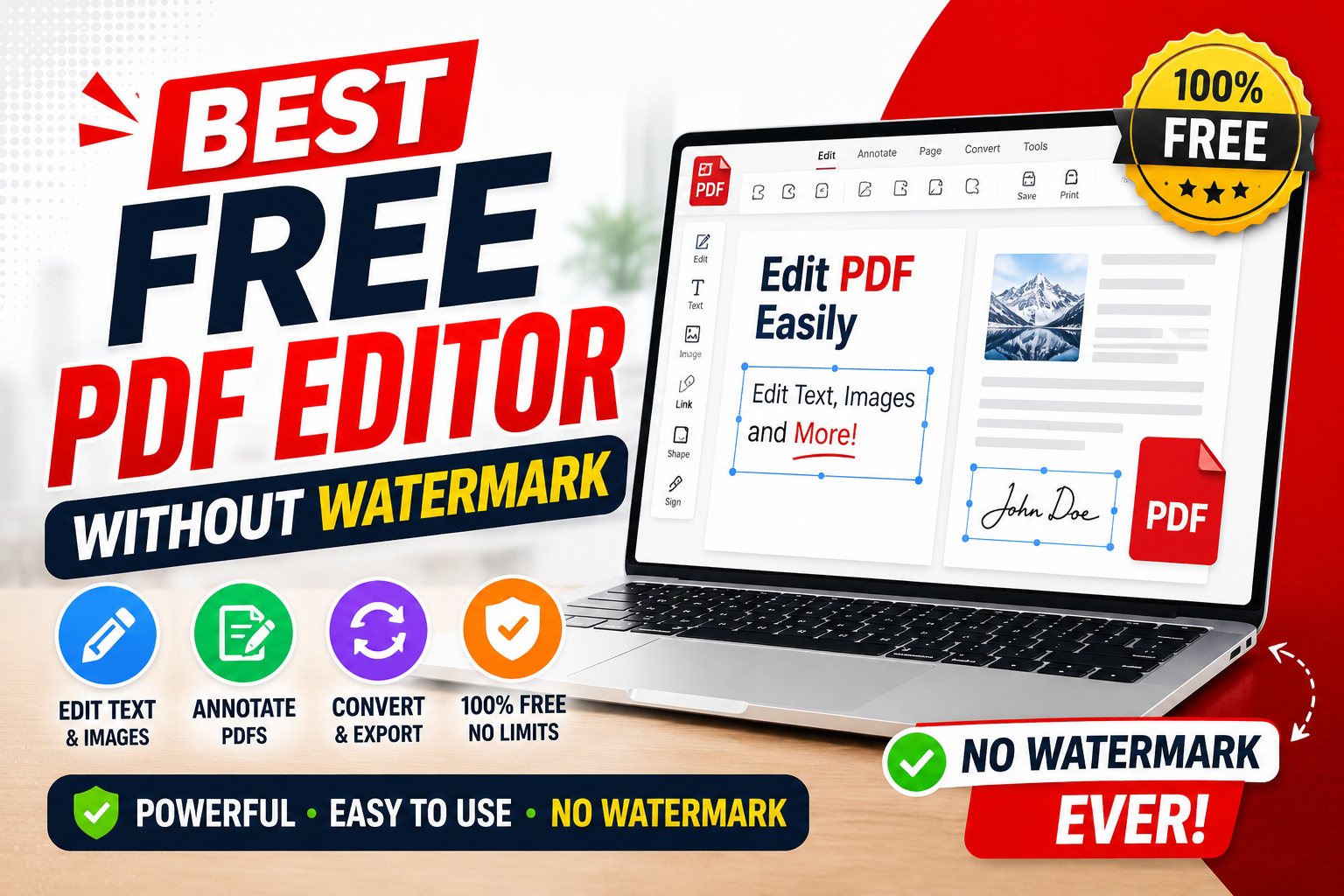
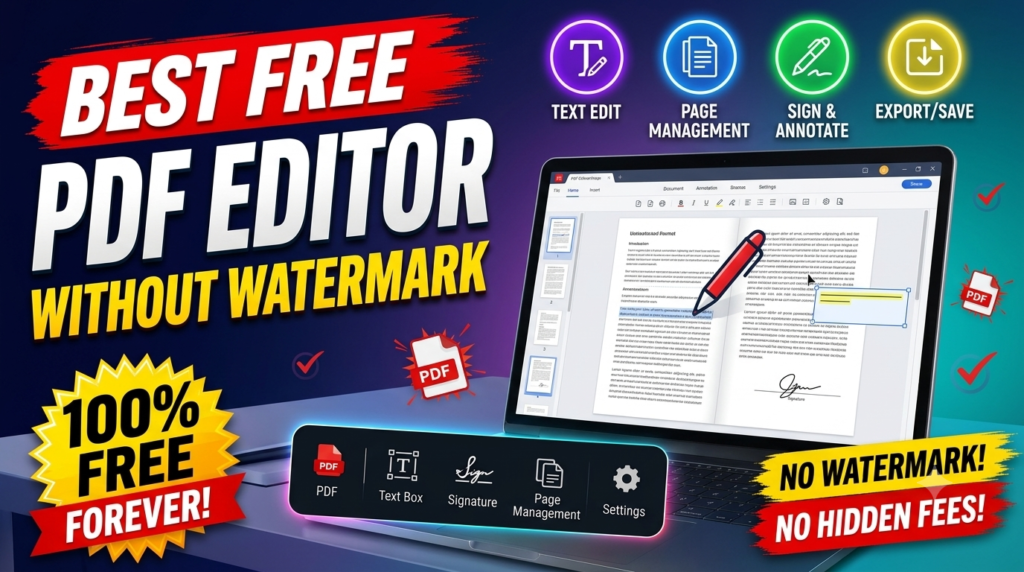
A genuine best free PDF editor without watermark solves this by letting you edit text, rearrange pages, add images or signatures, annotate, and export cleanly — all without nagging or restrictions. The good news? In 2026, there are several strong contenders that do exactly that.
Top Contenders for the Best Free PDF Editor Without Watermark
After weeks of real-world testing — editing contracts, annotating reports, filling forms, and even handling scanned documents — here are the standouts.
PDFgear: The Surprisingly Powerful All-Rounder
If I had to crown one as the best free PDF editor without watermark for most people right now, PDFgear takes the spot. It’s a desktop app available for Windows, Mac, and even has mobile support. No account required, no ads, and crucially, no watermarks on any exports.
What impressed me most was how it handles actual text editing. Many “free” tools only let you add annotations or fill forms, but PDFgear lets you directly modify existing text in many cases, add or remove pages, merge files, compress, and even includes solid OCR for scanned PDFs. The AI chat feature for summarizing or asking questions about document content feels futuristic without being gimmicky.
I used it recently to update a 40-page proposal. Changed headings, swapped images, fixed typos, and exported a pristine final version in minutes. No registration, no limits I could find. It just works.
PDF24 Creator: The Windows Workhorse
For Windows users who prefer a dedicated desktop tool, PDF24 Creator is a hidden gem that consistently ranks high. It’s completely free, open in spirit (though not fully open-source), and delivers a full suite of tools without any watermark nonsense.
You get page management, merging/splitting, compression, basic editing, and even a virtual printer for creating PDFs from any app. It’s not as flashy as some online tools, but it’s reliable and processes everything locally — a big plus for sensitive documents.
I’ve recommended it to several freelance friends who handle client deliverables daily. One told me it saved her from renewing an expensive subscription she barely used.
SimplePDF and Browser-Based Heroes
When you need something quick without installing anything, browser tools shine. SimplePDF stands out because it processes files entirely in your browser with no uploads to servers in many cases, ensuring privacy, and explicitly promises no watermarks.
Other solid mentions include certain features in tools like PDFescape (great for form filling) and ihatepdf-style suites that avoid watermarks on core functions. The key is checking the fine print — not every “free” label is equal.
Desktop Open-Source Options Like LibreOffice Draw
Don’t sleep on LibreOffice. While not PDF-exclusive, its Draw module lets you open, edit, and re-export PDFs with impressive control over text and layout. It’s 100% free, no watermarks ever, and works across platforms. Perfect if you’re already in the open-source ecosystem.
How to Choose the Right Free PDF Editor for Your Needs
Not every tool fits every scenario. Here’s a practical breakdown:
- For heavy daily use and full editing power: Go desktop with PDFgear or PDF24 Creator. They handle large files better and keep everything offline.
- Quick one-off edits on any device: Browser options like SimplePDF or similar no-upload tools.
- Form filling and signatures: PDFescape or built-in tools in the above often excel here.
- Team collaboration: Look for options that allow easy sharing without forcing accounts on recipients.
Pro Tip: Always test with a non-sensitive document first. Try editing text, adding an image, rearranging pages, and exporting. Check for formatting glitches — some tools struggle with complex layouts.
Step-by-Step: Editing a PDF Like a Pro (Using PDFgear as Example)
- Download and Open: Grab the app from the official site. Launch it and drag your PDF in.
- Text Editing: Select text directly. Change wording, font, or size. It preserves layout surprisingly well.
- Page Management: Reorder, delete, or insert pages effortlessly.
- Annotations and Markup: Highlight, underline, add comments or drawings for feedback.
- Add Elements: Insert images, signatures, or new text boxes.
- OCR for Scans: If it’s a scanned doc, run OCR to make text selectable and editable.
- Export Clean: Save or print — zero watermark, full quality.
The whole process feels intuitive after the first couple of tries. I’ve turned chaotic scanned contracts into polished, editable files in under 10 minutes.
Common Pitfalls to Avoid
- Assuming “Free” Means Unlimited: Some tools limit daily tasks or file sizes. The true best free PDF editor without watermark won’t nickel-and-dime you.
- Ignoring Privacy: Online tools that upload files can be risky for confidential info. Prefer local processing when possible.
- Overlooking Compatibility: Test on your specific PDFs. Complex designs with custom fonts can break in lesser tools.
- Forgetting Mobile Needs: If you work on the go, ensure the tool has a decent app or responsive web version.
I once used a popular online editor that worked great on desktop but turned my mobile edits into a formatting nightmare. Lesson learned.
Advanced Tips from Real Experience
- Batch Processing: Tools like PDF24 shine when you need to handle multiple files — merge a whole folder of reports in one go.
- Security Features: Look for password protection and redaction tools to black out sensitive info permanently.
- Integration: Some editors play nicely with cloud storage, but for maximum control, local + manual backups win.
- Customization: Experiment with compression levels to balance file size and quality — crucial for email attachments.
One insider insight: For resumes or client proposals, always preview the final export on different devices. What looks perfect on your screen might shift slightly elsewhere.
Real-Life Scenarios Where These Tools Saved the Day
Picture this: A small business owner needs to update pricing in a catalog PDF the night before a big meeting. No time for subscriptions. PDFgear let her edit directly and export professionally.
Or a student compiling research notes from scanned articles. OCR turned images into searchable text, annotations kept everything organized, and no watermark meant a clean submission.
I’ve used these tools for everything from tweaking freelance invoices to preparing board presentations. The freedom of not worrying about watermarks changes how you approach document work.
The Future of Free PDF Editing
As we move further into 2026, AI features are becoming standard even in free tools — summarizing long docs, suggesting edits, or extracting data. Privacy-focused, local-processing apps are gaining ground as people grow wary of constant uploads. The best free PDF editor without watermark today already feels remarkably capable, and the gap with paid software is narrower than ever.
Wrapping Up: Your Next Move
Finding a reliable best free PDF editor without watermark doesn’t have to involve endless trial and error. Start with PDFgear for most users — it balances power, simplicity, and true freedom better than anything else I’ve tested. If you’re Windows-only or prefer open-source, PDF24 or LibreOffice are excellent backups.
Don’t settle for tools that undermine your professionalism with watermarks or restrictions. Download one of these, experiment with your next document, and reclaim control over your PDFs. Your future self (and your clients) will thank you.
What’s been your biggest PDF headache? Drop a comment — I read every one and often update recommendations based on real user stories. Here’s to cleaner, faster document workflows ahead.