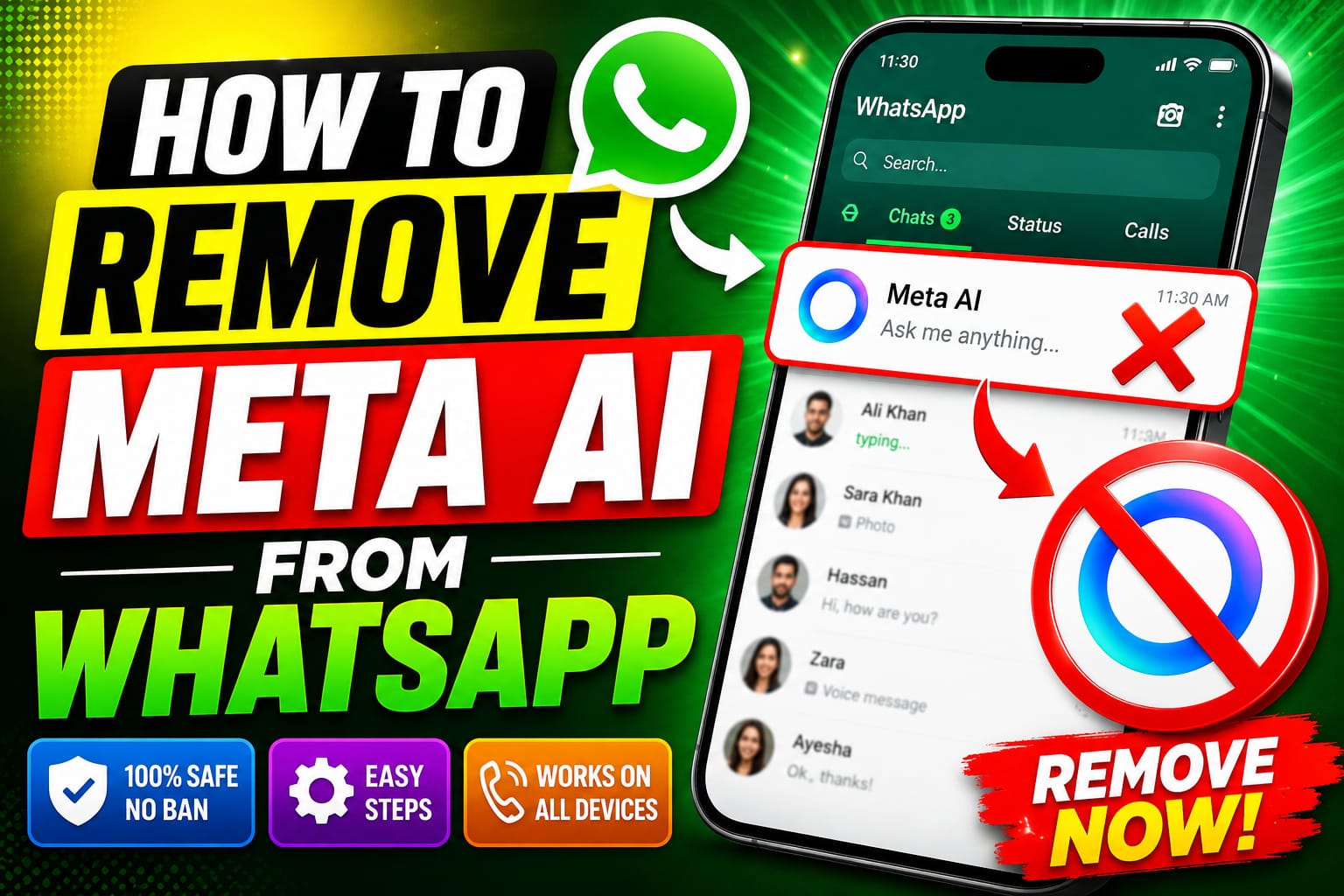
A few months back, I was in the middle of a late-night group chat with old college friends—nothing heavy, just catching up on life, sharing a few memes, and venting about work. Then, out of nowhere, that colorful Meta AI icon popped up like an uninvited guest at a dinner party. Someone typed “@Meta AI” to joke about a recipe suggestion, and suddenly the AI was chiming in with overly polished responses. It felt… off. Not because the suggestions were bad, but because it reminded me how deeply Meta has woven its AI into the apps we use for our most personal conversations.
That’s when I started digging seriously into how to remove Meta AI from WhatsApp. If you’re here, chances are you’ve felt the same nudge of annoyance or unease. Whether it’s the persistent button, the fear of your chats feeding the AI machine, or just wanting a cleaner messaging experience, this guide is for you. I’ve tested every workaround myself across Android and iOS, talked to privacy-conscious friends, and sifted through the official (and not-so-official) options. By the end, you’ll have practical steps, real insights into why this matters, and ways to reclaim a bit more control.
The Rise of Meta AI in WhatsApp: From Helpful Tool to Persistent Feature
Meta AI didn’t sneak in overnight. It rolled out gradually, starting as an optional experiment and becoming a baked-in element for millions of users. The promise was (and still is) convenient: quick summaries, creative ideas, or answers without leaving the app. But for many, including me, it crossed from useful into intrusive.
I remember updating WhatsApp one evening and noticing the AI shortcut right in the chat composer. Suddenly, every group felt like it had an extra participant who never sleeps and remembers everything. Privacy advocates quickly raised flags—interactions with Meta AI aren’t covered by the same end-to-end encryption as your regular chats. What you share with the AI can be used to train models, even if Meta claims safeguards.
This isn’t paranoia. It’s pattern recognition. We’ve seen how data from Facebook and Instagram feeds recommendations across platforms. WhatsApp, with its billions of users and intimate nature, is a goldmine. No wonder so many are searching for how to remove Meta AI from WhatsApp or at least limit its reach.
The good news? While a complete uninstall of the feature isn’t officially supported—Meta designed it to stick around—there are effective ways to hide it, neutralize it in your chats, reset its memory, and minimize data sharing. It’s not perfect, but it’s empowering.
Step 1: Hide or Mute the Meta AI Button and Chat
The most straightforward start is making the AI less visible and less noisy.
On many versions (especially newer ones), you might see a dedicated Meta AI chat or icon in the bottom corner. Here’s what worked for me:
- Open WhatsApp and navigate to your main Chats screen.
- If you see the Meta AI conversation (often with a colorful avatar), long-press it.
- Choose options like Archive or Mute. For mute, select “Always” to stop notifications.
Some users report a toggle under Settings > Chats to hide the Meta AI button entirely. On my Android device, it was there briefly before an update moved things around—WhatsApp loves rearranging settings. Check Settings > Chats and look for anything related to “AI suggestions” or “business features.”
If the button persists, don’t despair. The real power comes in the next steps.
Advanced Chat Privacy: Your Best Bet for Limiting AI Across Conversations
This is the feature I wish I’d known about sooner. Introduced to give users more control, Advanced Chat Privacy is a game-changer for how to remove Meta AI from WhatsApp interactions in specific chats.
Here’s exactly how to enable it:
- Open any individual or group chat (you’ll need to be an admin for groups).
- Tap the contact or group name at the top.
- Scroll down to Advanced Chat Privacy.
- Toggle it on.
What does this do? It prevents messages in that chat from being used for AI features like @Meta AI mentions. You’ll see a confirmation that Meta AI isn’t available there. Do this for your important chats—family, close friends, work—and suddenly the AI feels a lot less omnipresent.
I applied this to my main family group and noticed an immediate difference. No more accidental AI summons, and a subtle peace of mind knowing those late-night vents stay truly private.
Pro tip: Enable it proactively on new chats. It adds a small layer of friction but pays off in control.
Resetting Meta AI’s Memory: Wiping the Slate Clean
Even if you avoid the AI, past interactions might linger in its “mind.” Thankfully, there are commands to handle this.
In any chat (including one with Meta AI itself), try typing:
- /reset AI or /reset-all-ais
This clears conversation history and saved details for that app instance. Users on forums swear by it for starting fresh.
For a deeper clean:
- Delete the entire Meta AI chat thread.
- Go into your WhatsApp Settings > Privacy or linked Accounts Center to review connected data.
- Request deletion of specific info shared with Meta AI via Meta’s privacy tools (though options are limited directly in WhatsApp).
I did this after a few test queries and felt better knowing it wasn’t building a shadow profile from my casual questions.

Privacy Concerns and Why They Matter More Than You Think
Let’s pause the how-to for a second. Why bother with how to remove Meta AI from WhatsApp at all?
It’s about agency. WhatsApp’s core appeal has always been simplicity and privacy—end-to-end encryption for your messages. Introducing AI that requires server-side processing for certain features creates gray areas. While Meta insists regular chats remain encrypted, anything routed to the AI is fair game for model improvement (anonymized, they say).
Real-life scenario: A friend of mine, a small business owner, used Meta AI to brainstorm marketing ideas in a group chat. Weeks later, she saw eerily similar ad suggestions on Instagram. Coincidence? Maybe. But it highlights the connected ecosystem.
Mistake to avoid: Treating Meta AI like a neutral search tool. It’s not. Use it sparingly, and never share sensitive info—health details, financial worries, or anything you’d regret feeding the algorithm.
Alternative Approaches: Third-Party Apps and Switching Ecosystems
If the built-in options aren’t enough, some turn to modified WhatsApp clients or enhanced apps (like those with WA Enhancer features). These can offer more toggles to disable AI elements.
Warning: These come with risks—potential bans, security vulnerabilities, and violation of WhatsApp’s terms. I don’t recommend them for daily use unless you’re tech-savvy and using a secondary number.
Longer term, consider apps like Signal for privacy-first messaging. No AI bloat, strong encryption, and a focus on minimalism. Many of my contacts have migrated for family chats, and the transition was smoother than expected.
For power users, explore WhatsApp Business settings if applicable, where you can manage or disconnect AI agents more directly.
Maintaining a Cleaner WhatsApp Experience Going Forward
Once you’ve tackled the immediate issue, habits keep it that way:
- Regularly review linked accounts in Meta’s Accounts Center.
- Turn off unnecessary data sharing in phone settings (e.g., analytics).
- Educate your groups—share these steps so everyone benefits.
- Update WhatsApp judiciously; new versions often tweak AI visibility.
I’ve settled into a routine where Meta AI is there but ignorable. My chats feel more mine again.
The Bigger Picture: Balancing Convenience and Control
How to remove Meta AI from WhatsApp isn’t just a technical fix—it’s part of a larger conversation about tech we can’t easily opt out of. Meta’s integration reflects a broader industry push toward AI everywhere, but users are pushing back, demanding transparency and choice.
In my experience, the workarounds work well enough for most people. They won’t erase the feature entirely, but they’ll minimize its footprint and protect your data flow.
If privacy is your top priority, vote with your attention: use the AI less, enable every protective setting, and support apps that respect boundaries. The next time that icon tempts you, remember—you have options.
What’s your take? Have you tried these steps, or found another clever workaround? Drop a comment below—I read them all and often update this piece based on real user feedback. In the meantime, take back a little control in your chats. Your future self (and your data) will thank you.