I was on a flight to Denver last winter, phone at 12 percent, no Wi-Fi, and the one video I really needed—the one with the exact guitar riff I was trying to learn—sat locked behind YouTube’s “watch online only” wall. I had already tried the usual tricks people whisper about in group chats. Some worked for a day. Most got my device flagged or filled the screen with pop-ups that made me feel like I’d just clicked a bad link in 2009. That afternoon I finally stopped chasing hacks and started treating the problem like an actual user problem instead of a technical challenge. What follows is everything I wish someone had told me then about how to download YouTube videos on iPhone the ways that still work in 2026, the ones that don’t, and the quiet costs nobody mentions until it’s too late.
If you’ve ever needed a tutorial offline, a kids’ show for a road trip, or a long podcast-style video for the gym, you already know the frustration. This piece walks through the legitimate path, the gray areas people still try, the risks that actually matter, and a few practical workarounds that keep your device and your conscience cleaner. By the end you’ll know exactly how to download YouTube videos on iPhone when it is allowed, why most third-party routes are worse than they look, and what to do instead when the official options fall short.
The Only Method YouTube Actually Approves
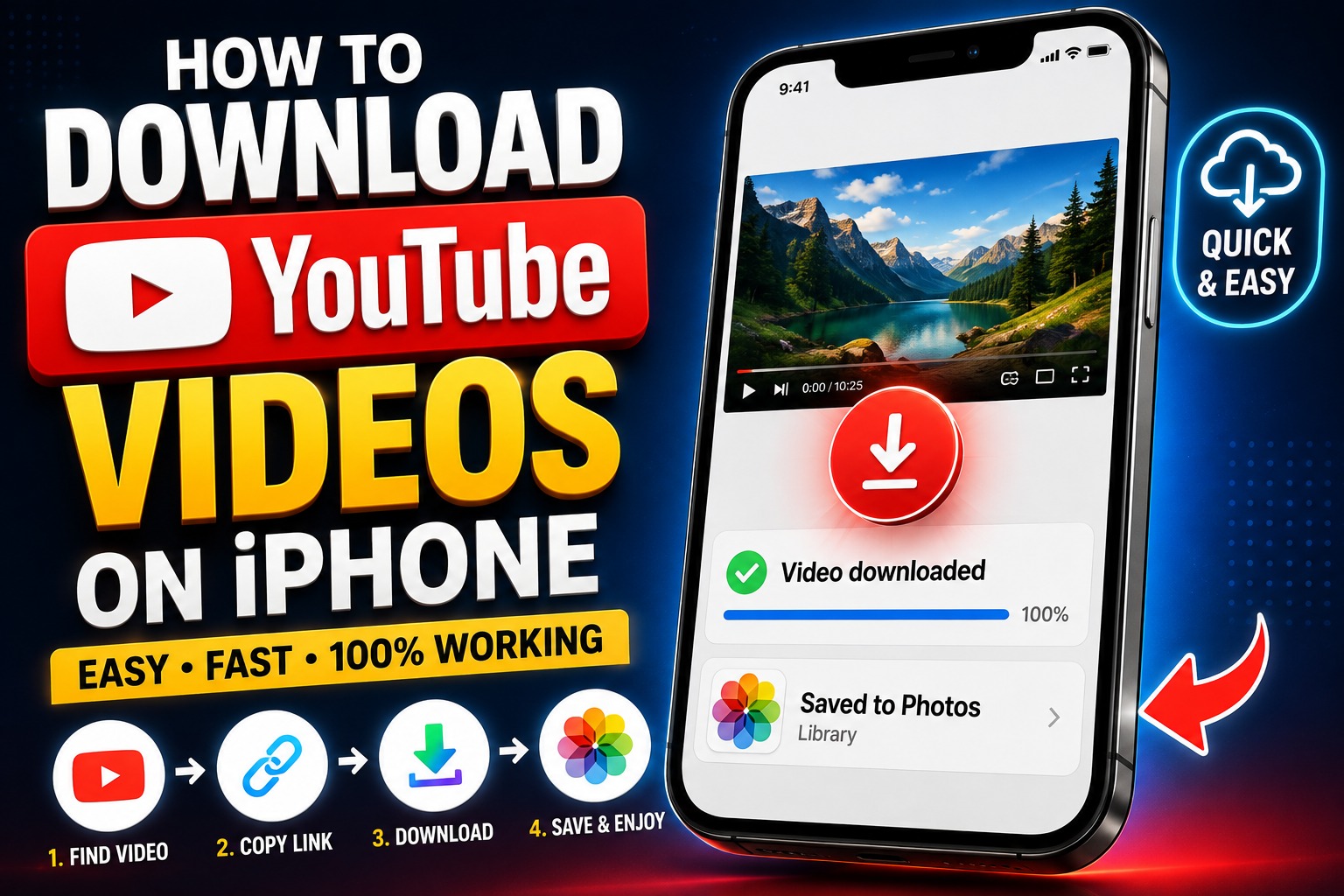
YouTube’s own offline feature lives inside the official app and requires YouTube Premium. Once you have it, the process is almost boring in its simplicity. Open the YouTube app, find the video, tap the download icon beneath the player, choose a quality if offered, and wait. The video appears under the Downloads tab and stays available even when the phone is in airplane mode.
That is the complete official answer to how to download YouTube videos on iPhone. It works across iOS versions from recent ones back a few years, and the files are protected so you cannot share them outside the app. Premium also removes ads and lets you keep playing audio in the background—small quality-of-life upgrades that add up on long trips.
I used to resist paying. Then I calculated the hours I’d spent hunting broken download sites and cleaning malware off a friend’s phone after she tried one. The subscription started looking cheaper. If you already pay for YouTube Music or Google One, check whether Premium is bundled; sometimes it is.
Why Third-Party Sites and Apps Feel Tempting (and Why Most of Them Are a Bad Trade)
Search “how to download YouTube videos on iPhone” and you’ll see pages promising free converters, browser tricks, and apps that claim to save any video in one tap. Some of them still function for a while. The problem is not that they never work. The problem is what they cost in the background.
Many of those sites inject extra scripts. On an iPhone that can mean repeated permission requests, sudden battery drain, or worse—credential harvesting if you log into anything while the page is open. Apps from outside the App Store require sideloading or enterprise profiles that Apple can revoke without warning. I’ve watched two different “YouTube downloader” profiles get pulled in the same week, leaving users with dead icons and no way to recover the files they already saved.
Copyright is the quieter risk. YouTube’s terms prohibit downloading except through the official offline feature. Creators own the rights. When you pull a video outside the approved channel, you are copying someone else’s work without the license the platform negotiated. For personal use the legal heat is usually low, but “usually” is not the same as safe. Platforms have gotten better at detecting bulk downloads and can restrict accounts. If the video is music or a major studio release, the enforcement is stricter.
There is also the quality problem. Most free converters re-encode the file, so the 1080p you thought you grabbed arrives as a soft 480p with audio that drifts. Official downloads keep the original stream quality and the correct audio track.
Real-World Scenarios Where Offline Access Actually Matters
A teacher preparing lessons for a classroom with spotty internet needs reliable copies of educational channels. A parent on a cross-country drive wants the same three kids’ videos available without burning mobile data. A musician learning a specific performance needs to scrub frame-by-frame without buffering. In each case the official Premium download solves the problem cleanly.
I once helped a friend who was filming a documentary. She needed reference clips from public-domain and Creative Commons YouTube videos for offline editing on an iPad. We used the official app where possible and, for the rest, contacted the creators directly for permission and higher-resolution files. That route took longer but produced better results and zero account risk.
If your need is temporary—say one long interview for a weekend trip—consider screen recording with the iOS built-in tool while the video plays. It is imperfect (you capture the interface and any ads), but it stays inside Apple’s rules and does not require extra software. Just remember the recording is for personal use only.
Step-by-Step: Setting Up Official Offline Viewing
- Subscribe to YouTube Premium through the app or YouTube.com.
- Open the YouTube app on your iPhone and sign in with the same account.
- Navigate to the video. Tap the download arrow under the player.
- Choose quality if the option appears (higher quality uses more storage).
- Monitor progress in the Library → Downloads section.
- To free space later, swipe left on any downloaded video and delete.
That is the entire approved flow for how to download YouTube videos on iPhone. No extra apps, no browser gymnastics, no risk of the file vanishing when a third-party server goes offline.
Storage management matters. A single hour of 1080p can eat several hundred megabytes. iOS will warn you when space is low, but it is smarter to review downloads monthly and remove what you no longer need. Premium also lets you set downloads to Wi-Fi only, which protects your data plan.
Common Mistakes That Still Catch People
People assume any “YouTube downloader” app in the App Store is safe. Apple removes many, but new ones appear under different names. Read the permissions carefully. If an app asks for full network access plus the ability to install profiles, walk away.
Another frequent error is downloading on one device and expecting the files to appear on another. Official downloads are tied to the account and the specific device. They do not transfer like iCloud photos.
Some users try to force higher quality by changing the player settings before downloading. That only works if the video was uploaded in that quality. You cannot invent resolution that never existed.
Finally, people forget that downloaded videos can still expire if the uploader removes them or if YouTube changes licensing. Always keep a mental note of which clips are critical and back up the important ones through legitimate channels when possible.
Alternatives When Premium Is Not an Option
If budget is the issue, look at free educational platforms that already allow offline viewing—Khan Academy, certain university channels, or public-domain collections on the Internet Archive. Many creators also post the same content on their own sites or Patreon with download links. Supporting them directly often costs less than a year of workarounds and gives you higher-quality files.
For music and podcasts, switch to services built for offline use. YouTube Music Premium overlaps with video Premium in useful ways. Apple Podcasts and Spotify both handle offline listening without the copyright gray zone that video downloads create.
Screen recording remains a last resort for short personal clips. Keep the recordings private and delete them when finished. Do not upload them elsewhere.
The Bigger Picture: Why This Keeps Coming Up
The demand for how to download YouTube videos on iPhone never disappears because internet access is still uneven. Rural areas, international travel, and simply wanting to save battery all create the same pressure. YouTube knows this; that is why the official offline feature exists. The tension comes from the gap between what users want (everything, free, forever) and what the platform and creators can sustainably offer.
Every time a new converter site appears, it solves a short-term itch and creates longer-term problems—malware, broken links, account flags, and eroded trust. The cleaner path is the one that stays inside the rules and pays the people who made the videos worth watching in the first place.
I still keep a small list of trusted channels whose offline downloads I refresh every few months. The rest I watch online or skip. That discipline has saved me more time and stress than any free downloader ever did.
Practical Tips That Survive the Next iOS Update
- Always download over Wi-Fi when possible. Cellular downloads drain both battery and data.
- Use the “Download quality” setting inside YouTube’s offline preferences to balance space and clarity.
- For playlists, download the whole list at once rather than video by video; the app handles the queue better that way.
- If a download fails, check whether the video is age-restricted or region-locked. Those often refuse offline status even with Premium.
- Review your downloaded library before a long trip the same way you check your suitcase. Delete the ones you already finished.
These small habits make the official method feel less like a compromise and more like a reliable tool.
Learning how to download YouTube videos on iPhone the right way is less about finding a secret button and more about deciding what kind of user you want to be. The official route is slower to set up and costs money, yet it is the only one that consistently works without side effects. Everything else is a temporary patch that tends to cost more later—in time, security, or quiet legal risk.
The next time you are stuck without signal and staring at a video you need, you will know the clean option is already in the app. Use it. Support the creators when you can. And leave the sketchy converter sites for the internet’s next cautionary tale.
That approach has kept my own library useful, my phone clean, and my conscience quieter than any free download ever managed.