
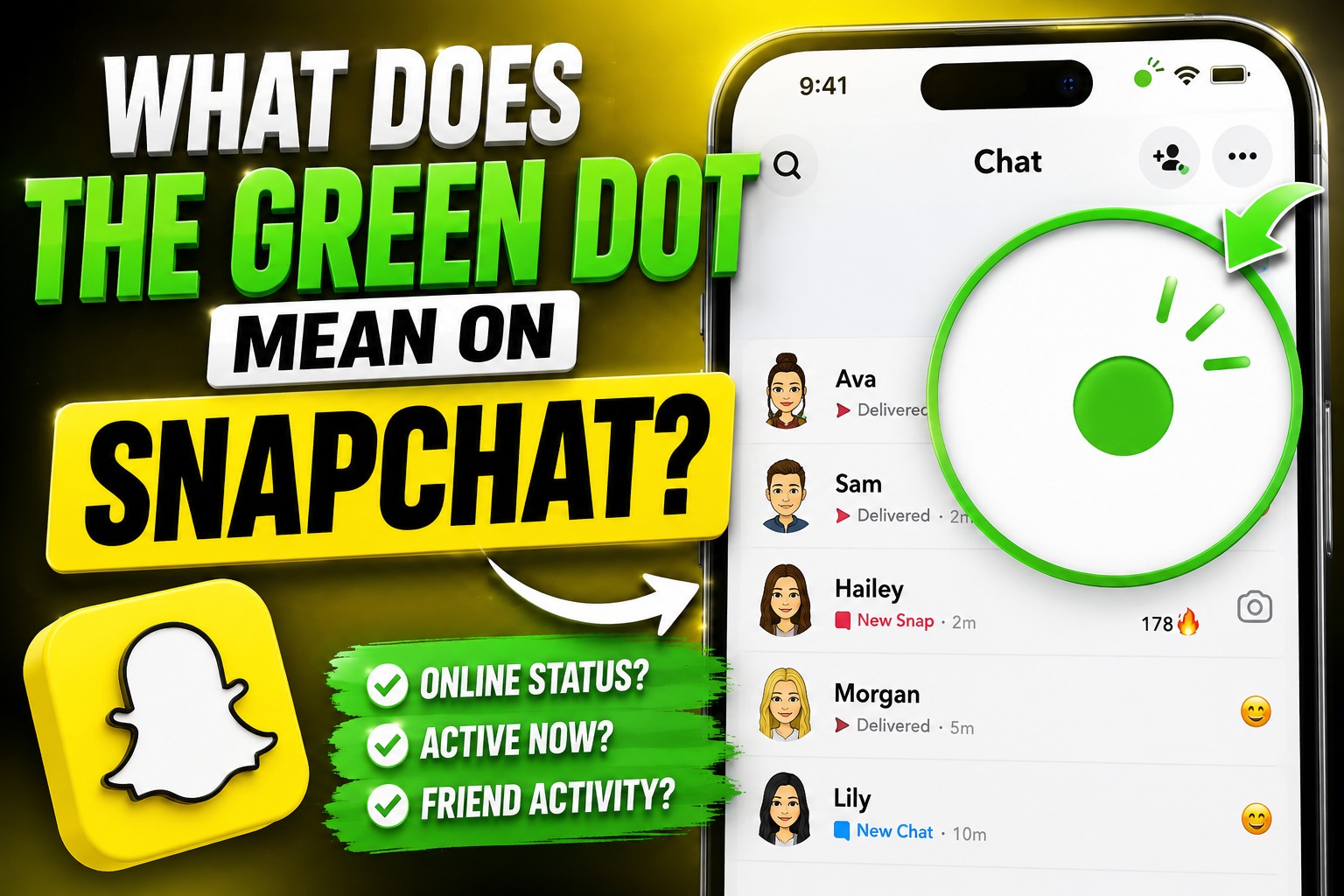
You’re scrolling through your chats, half-listening to a podcast, when something catches your eye. Next to a friend’s Bitmoji sits a small, bright green dot. It wasn’t there an hour ago. Now it is. Your brain does that familiar quick calculation: Are they online right now? Did they just open the app? Are they ignoring my last Snap on purpose?
If you’ve ever stared at that green circle and wondered exactly what does the green dot mean on Snapchat, you’re not alone. The feature looks simple. Its meaning turns out to be a bit more layered than most people realize, and the confusion has only grown as Snapchat keeps tweaking how presence shows up across the app.
This piece walks through the real meaning of the green dot, where it appears, how long it sticks around, what it does not tell you, and the privacy choices that actually matter. By the end you’ll know how to read the signal without overthinking it, and how to control whether other people can see yours.
The Straightforward Answer First
The green dot is Snapchat’s Activity Indicator. Officially, it tells you that a friend has been active on Snapchat recently. In practice, that usually means the person has the app open in the foreground or had it open within the last few minutes. Some users and older explanations still talk about a broader 24-hour window, especially on the Add Friends or Quick Add screens. The most common experience in 2026, though, is a near-real-time presence signal that lights up while someone is using the app and fades shortly after they leave it.
You will only see the green dot next to mutual friends who have left their Activity Indicator turned on. It is not a read receipt. It is not tied to any particular chat. It does not mean they are currently typing to you, watching your story, or staring at your profile. It simply signals that the app is (or very recently was) open on their phone.
Think of it as Snapchat’s quieter version of the green circle on Instagram or the “online” label on WhatsApp. The difference is that Snapchat keeps the signal fairly short-lived and limits it to people you both follow back.
Where You’ll Actually See the Green Dot
The indicator doesn’t appear everywhere. Knowing the locations helps you interpret it correctly.
On the Chat screen it sits on or near a friend’s Bitmoji in the conversation list. Scroll through recent chats and the dots appear and disappear in something close to real time as people open and close the app.
When you take a Snap and swipe up to the Send To sheet, active friends often show the green dot next to their name or Bitmoji. This is one of the most practical places to notice it: you can quickly see who is likely to open your Snap within the next minute or two.
On a friend’s profile card, after you tap their Bitmoji, the same green indicator can appear, sometimes paired with a short label like “Active now” or a more muted “Recently active.”
It also shows up in search results and on the Add Friends / Quick Add screens. In those spots some users report the signal lasting longer, closer to the “active sometime in the last day” interpretation. Context matters.
One more green dot exists that has nothing to do with friends: the system-level privacy indicator that appears at the top of your phone screen (green or orange on many devices) whenever any app, including Snapchat, is using the camera or microphone. That is an operating-system feature for privacy awareness, not a Snapchat status. If the green light is only at the very top of your screen and not next to anyone’s avatar, you’re looking at camera access, not activity status.
How Long the Green Dot Stays Visible
Snapchat does not publish an exact timer. From consistent user reports and testing across recent versions, the solid green dot usually remains while the person has the app open and then lingers for a short grace period—often three to five minutes, sometimes a bit longer—after they close it or switch to another app. Background refresh settings and device differences can stretch that window slightly.
If you see a time stamp next to the indicator (“Active 12m ago”), the person is no longer in the app. The plain green dot without a time label is the stronger signal that they are currently using Snapchat or left it only moments earlier.
This lag is why the feature frustrates people. You can send a Snap the second the green dot appears, only to watch it sit unopened because the friend already closed the app and walked away. The reverse also happens: the dot disappears while someone is still technically in the app but has it backgrounded.
Common Misreadings That Cause Unnecessary Stress
A surprising number of arguments and overthinking sessions start with the green dot. Here are the biggest misconceptions.
It does not mean they saw your message and chose not to reply. Snapchat has separate open/read indicators for that. The green dot only tracks app presence.
It does not reveal who they are talking to or what they are doing inside the app. They could be scrolling Spotlight, editing a lens, watching Stories, or sitting on the camera screen doing nothing. Presence is not intent.
It is not the same as Snap Map activity. Ghost Mode hides your location on the map; the Activity Indicator is a separate toggle. You can be invisible on the map and still show a green dot, or vice versa.
It will not appear for one-sided friendships. If you added someone and they never added you back, or if they removed you, the signal stays hidden both ways.
Turning the feature off is mutual on current versions. When you disable your own Activity Indicator, you usually stop seeing other people’s dots as well. Snapchat treats it as a reciprocal setting, similar to how some messaging apps handle read receipts.
How to Turn the Green Dot On or Off
If you prefer not to broadcast when you’re in the app, the control is straightforward.
Open Snapchat and tap your profile Bitmoji in the top left. Tap the gear icon in the top right to open Settings. Scroll to the privacy section (labeled Privacy Controls, App & Privacy, or My Privacy & Data depending on your app version). Look for Activity Indicator and toggle it off.
The exact menu path has shifted slightly over the years. On many recent builds the path runs through My Privacy & Data → Privacy Choices → Activity Indicator. Once off, friends stop seeing your green dot. In most cases you also stop seeing theirs.
You cannot turn the indicator off for specific people only. It is all-or-nothing. Blocking someone removes the signal between you, but that is a heavier step than simply disabling the Activity Indicator.
Why the Feature Exists and When It Is Actually Useful
Snapchat has always tried to feel more immediate and casual than other platforms. The green dot supports that goal. When you open the Send To sheet and see several friends already active, you know a spontaneous Snap has a better chance of being opened quickly. For creators and people who send time-sensitive content, that small timing edge matters.
It also creates a low-pressure way to know when friends are around without requiring constant message exchanges. In group chats or among close friends who already talk often, the signal can reduce the awkward “are you free?” texts.
At the same time, the feature collides with how many people actually use their phones. We open apps for thirty seconds, get distracted, put the phone down, and the indicator keeps glowing for a few extra minutes. That mismatch is the main source of anxiety the green dot creates.

Privacy Trade-Offs Worth Considering
Leaving the Activity Indicator on makes the app feel more social and responsive. Turning it off gives you quieter usage. Neither choice is wrong. The useful question is whether the convenience of seeing (and being seen as) active outweighs the occasional moment of “why are they online and not answering?”
A few practical notes:
- The signal only reaches mutual friends. Random accounts and people who have not added you back cannot see it.
- It does not create a permanent log. Friends cannot scroll back and see when you were active yesterday or last week.
- Disabling it does not affect Snap Map, story views, or open receipts. Those are separate systems.
- If you use Snapchat on multiple devices, the indicator reflects activity on any of them.
Parents and partners sometimes treat the green dot as a monitoring tool. That rarely ends well. Presence is not proof of anything specific, and the lag makes it unreliable for surveillance. Clear conversation works better than dot-watching.
Practical Tips for Living With the Green Dot
If you like the signal but want less mental noise, try these habits:
Glance at the Send To sheet when you’re about to send something time-sensitive. The active dots give a useful probability boost.
Ignore the dot when you’re waiting for a reply. Open status and the actual conversation history matter more.
If a particular friend’s green dot consistently triggers overthinking, simply mute the chat or move it lower in your list. Out of sight reduces the pull.
Update the app regularly. Presence behavior has changed across versions, and older builds can show stale or missing dots.
Test your own settings. Turn the indicator off for a week and notice whether you miss seeing other people’s status or feel freer without it.
A Quick Comparison to Other Platforms
Instagram’s green circle is more explicit about “Active now.” WhatsApp shows “online” and last-seen timestamps (with privacy controls). Messenger has active status that can be limited by list. Snapchat’s version is quieter and shorter-lived. That design choice keeps the app feeling less like a presence dashboard and more like a place for spontaneous sharing. The downside is the ambiguity that leads so many people to search what does the green dot mean on Snapchat in the first place.
The Bigger Picture
Social apps keep adding small signals that reveal when we are available. Each new indicator trades a bit of privacy for a bit more connection. The green dot sits in the middle of that trade-off: useful enough that many people leave it on, limited enough that it rarely becomes a major privacy risk on its own.
The healthiest approach is to treat it as one weak signal among many. A green dot means the app is open. It does not mean the person is free, interested, or obligated to respond. When you start reading more into it than that, the feature stops being helpful and starts creating noise.
Once you understand the limits—mutual friends only, short window, no intent information, easy to disable—the little green circle loses most of its mystery. You can still notice it, use it when timing matters, and ignore it the rest of the time.
So the next time that green dot appears next to a Bitmoji, you’ll know exactly what it is telling you, and more importantly, what it is not. That small bit of clarity is usually enough to stop the overthinking and get back to actually using the app the way it was meant to be used: quickly, casually, and without staring at status indicators for answers they cannot give.