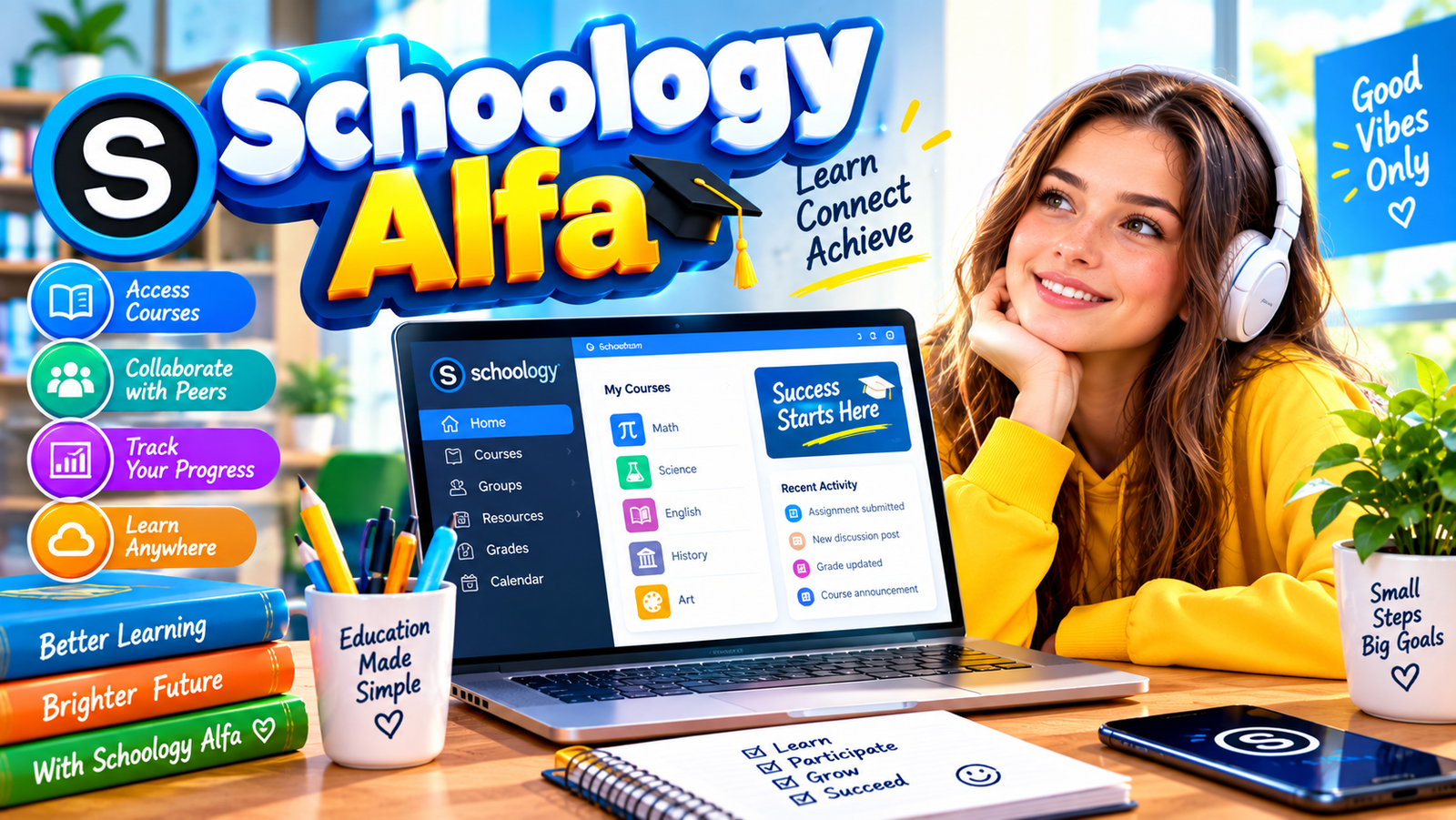
If you’ve searched for “Schoology Alfa” and landed on conflicting claims—some calling it a brand-new AI-powered LMS, others treating it like a special premium edition—you’re not alone. The term creates confusion because it is not an official product name from PowerSchool, the company that owns Schoology.
In reality, Schoology Alfa most often refers to the customized Schoology Learning environment used by Alfa Fundación (also written Alfa Fundacion), an educational foundation in the Monterrey, Mexico area. Their portal is typically accessed at a subdomain such as alfafundacion.schoology.com. It runs on the standard Schoology platform with the foundation’s branding, user accounts, courses, and configurations.
This article cuts through the noise. You’ll get a clear explanation of what the term means, how login and daily use work, the core features students, teachers, and parents actually rely on, common pitfalls, and how this setup supports Alfa Fundación’s mission of helping talented students from public schools advance academically.
What Is Schoology Alfa?
Schoology is a cloud-based K-12 learning management system (LMS) from PowerSchool. Schools and organizations use it as a central hub for courses, assignments, grades, materials, discussions, messaging, and parent communication. It works in browsers and via official iOS and Android apps.
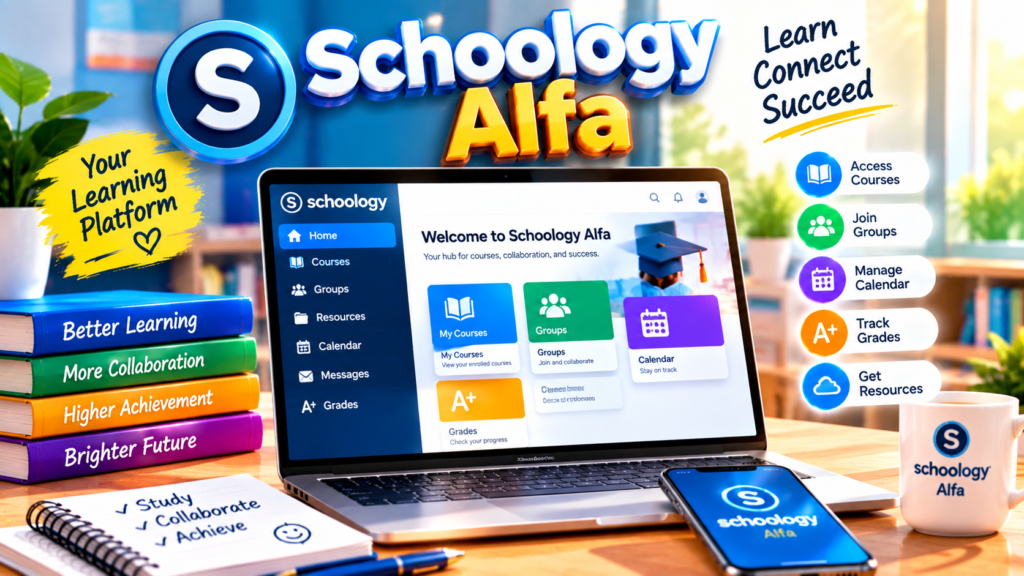
Institutions can run branded or customized instances with their own subdomain, logos, SSO options (often Google or Microsoft), and specific course structures. “Schoology Alfa” is one such instance associated with Alfa Fundación. It is not a separate software product, alpha/beta release, or AI-upgraded version sold by PowerSchool. Claims that present it as a distinct “smarter” or “adaptive AI” platform beyond standard Schoology features are inaccurate or overstated.
Alfa Fundación focuses on talented students from lower-income families in the Monterrey metropolitan area. It offers after-school enrichment centers (emphasizing math, science, English, and Spanish), a high school program, and pathways/scholarships toward university. The Schoology portal helps organize the digital side of that multi-year support—materials, submissions, grades, and communication—in one place for students, teachers, and families.
If your school or program is not connected to Alfa Fundación, searching “Schoology Alfa” may simply surface general Schoology information under a popular keyword. Always use the exact login URL and credentials provided by your own institution.
How to Log In to Schoology Alfa (or Any Schoology Instance)
Access depends on your institution’s setup. For Alfa Fundación users, the common entry point is the dedicated subdomain.
- Open a supported browser (latest Chrome, Edge, Firefox, or Safari) or the official Schoology mobile app.
- Go to the exact URL given by your school or foundation (example pattern: alfafundacion.schoology.com or yourschool.schoology.com). Avoid generic app.schoology.com unless instructed—custom domains help route to the right environment.
- Enter the username/email and password supplied by the institution. Many setups support single sign-on (SSO) with school Google or Microsoft accounts.
- Complete any first-time verification or parent access code steps if required.
- You land on a role-based dashboard showing courses, recent activity, upcoming deadlines, and announcements.
Tips that prevent common lockouts:
- Bookmark the official institutional URL.
- Use the “Forgot Password” flow or contact your school’s tech support/admin rather than creating a new personal account.
- On shared devices, always log out.
- Keep the mobile app updated and ensure a stable internet connection.
- Parents usually need a parent access code (provided by the school or student) to link accounts and view grades, assignments, and communications.
If login fails, the problem is almost always credentials, the wrong URL, or an account not yet provisioned—not a missing “Alfa” feature.
Core Features You’ll Actually Use
Because Schoology Alfa runs on standard Schoology Learning, the tools match what thousands of schools already use. Exact availability can vary by institutional configuration and permissions.
For students
- Course materials organized by folders, topics, or weeks (documents, videos, links, readings).
- Assignment submission with timestamps, file uploads, or in-platform responses; quizzes and tests.
- Gradebook view with scores and teacher feedback.
- Calendar of due dates and events.
- Messaging, discussion boards, and announcements.
- Mobile app access for checking updates and lighter tasks on the go.
For teachers
- Course creation and organization with reusable resources and templates.
- Assignment creation, rubrics, grading tools, and feedback options.
- Analytics and progress tracking to spot engagement or performance patterns.
- Communication tools (announcements, messaging, groups).
- Integrations with common tools such as Google Drive, Microsoft 365, and others depending on the school’s setup.
- AI-assisted features where enabled by PowerSchool (for example, tools that help generate or refine instructional content).
For parents/guardians
- Linked views of their child’s courses, grades, upcoming work, and teacher messages (when parent accounts are enabled and linked).
The platform supports hybrid, fully online, and in-person workflows. Materials and submissions stay centralized so students and families spend less time hunting across email, paper, and multiple apps.
Advantages, Limitations, and When It Fits Best
Strengths
- One place for materials, work, grades, and communication reduces friction.
- Familiar, relatively clean interface that works across devices.
- Strong support for structured K-12 courses and family visibility.
- Scales for programs like Alfa Fundación’s multi-year pathway (enrichment centers through high school and beyond).
- Mobile access helps continuity outside formal class time.
Limitations and caveats
- It is only as good as the institution’s setup, training, and ongoing content quality. A poorly organized course still feels chaotic.
- Not every advanced analytics or AI tool is automatically available; these depend on the school’s PowerSchool configuration and licensing.
- Internet access and device availability still matter for equitable use.
- Parent access requires proper account linking; it is not automatic for every family.
- It is not a full student information system (SIS). Official transcripts, attendance records, and enrollment data often live in a separate system that may integrate with Schoology.
This setup works especially well for programs that need consistent digital organization across multiple years and locations, such as Alfa Fundación’s model of after-school enrichment plus high school. It is less ideal if a school wants a completely open-source, self-hosted system or has very different pedagogical needs that favor another LMS.
Common Misconceptions and Mistakes to Avoid
- Treating “Schoology Alfa” as an official PowerSchool product name or a paid upgrade tier. It is institutional branding/customization.
- Searching for a separate “Schoology Alfa app.” Use the official Schoology mobile app and select or log into the correct school/institution.
- Using an incorrect or outdated URL and assuming the platform is down.
- Ignoring parent access codes or assuming parents automatically see everything.
- Over-relying on the mobile app for heavy file work or complex submissions—desktop/browser is usually smoother for those tasks.
- Expecting features that your specific institution has not enabled.
Practical Tips for Getting the Most Out of It
Students: Check the calendar and notifications regularly, submit early when possible, and use discussion tools to clarify questions. Keep files organized before uploading.
Teachers: Use clear folder structures, set consistent due dates, leverage rubrics for faster feedback, and take advantage of any available analytics to identify students who need support early.
Parents: Set up linked accounts promptly, review the gradebook and upcoming work weekly, and use messaging for constructive communication rather than last-minute grade questions.
Institutions: Provide clear login instructions, parent codes, and basic training at the start of the year. Consistent course templates help students move between classes without relearning the interface.
FAQ
Is Schoology Alfa a real product from PowerSchool?
No. Schoology Learning is the official product. “Schoology Alfa” is commonly used to describe the customized Schoology environment associated with Alfa Fundación or similar institutional branding.
How do I log in if I am part of Alfa Fundación?
Use the URL and credentials supplied by the foundation (often a subdomain such as alfafundacion.schoology.com). Follow any SSO or first-time setup steps provided.
Can parents see grades and assignments?
Yes, when the institution enables parent accounts and provides an access code to link the parent account to the student.
Is there a separate Schoology Alfa mobile app?
No. Download the official Schoology app from the App Store or Google Play and log in with your institutional credentials.
Does it work for fully remote or hybrid learning?
Yes. The platform supports materials, submissions, discussions, and communication for online, hybrid, and in-person use, provided users have internet access.
Moving Forward with Clarity
Understanding that Schoology Alfa is simply Alfa Fundación’s branded instance of the standard Schoology platform removes most of the confusion surrounding the term. Once you know which URL and credentials belong to your institution, the daily experience becomes straightforward: courses, assignments, grades, and communication live in one reliable place.
Whether you are a student checking deadlines, a teacher organizing materials, or a parent tracking progress, the practical steps outlined above—using the correct institutional link, enabling parent access codes, and relying on the official mobile app—will get you where you need to go. Focus on the tools that actually support learning rather than chasing product myths, and the platform works as intended.